Common web design mistakes that can affect SEO
A web design mock-up may look finished, but it might hide half its content from search and AI crawlers.
Tabs and accordions, big navigation menus, infinite scroll, image-led banners, and sign-up pop-ups all make a page engaging and interactive. Yet each one changes what a crawler can find, read, and follow. Search engines have also built user experience into how they rank pages.
Developers, designers, and business owners often add common web design elements and content display methods to their websites to convey their brand messaging. However, some of these changes can impact SEO more than you might think.
In this article, we’ll explore specific design changes, how they can be damaging to SEO, and the crawlable HTML alternatives your designers and developers can ship instead.
If you’ve redesigned your website and traffic has fallen, start with our guide to why organic traffic dropped after the redesign. It walks through redirects, deleted pages, indexing restrictions, and navigation changes that commonly cause a post-launch drop.
Specific design changes and their potential impact on SEO
Consider these web design elements and changes and how they can affect SEO performance.
Placing content behind tabs and accordions
Adding content elements such as tabs or accordions is a good way to add interactivity to your user journey and keep people engaged with your content. When users can navigate their way through elements that are split into logical sections, they can interact with sections that are relevant to them.
The example below shows how UCAS have used tabs for their FAQ content, which the user can easily navigate without having to scroll through all the content that’s hidden behind the other tabs:
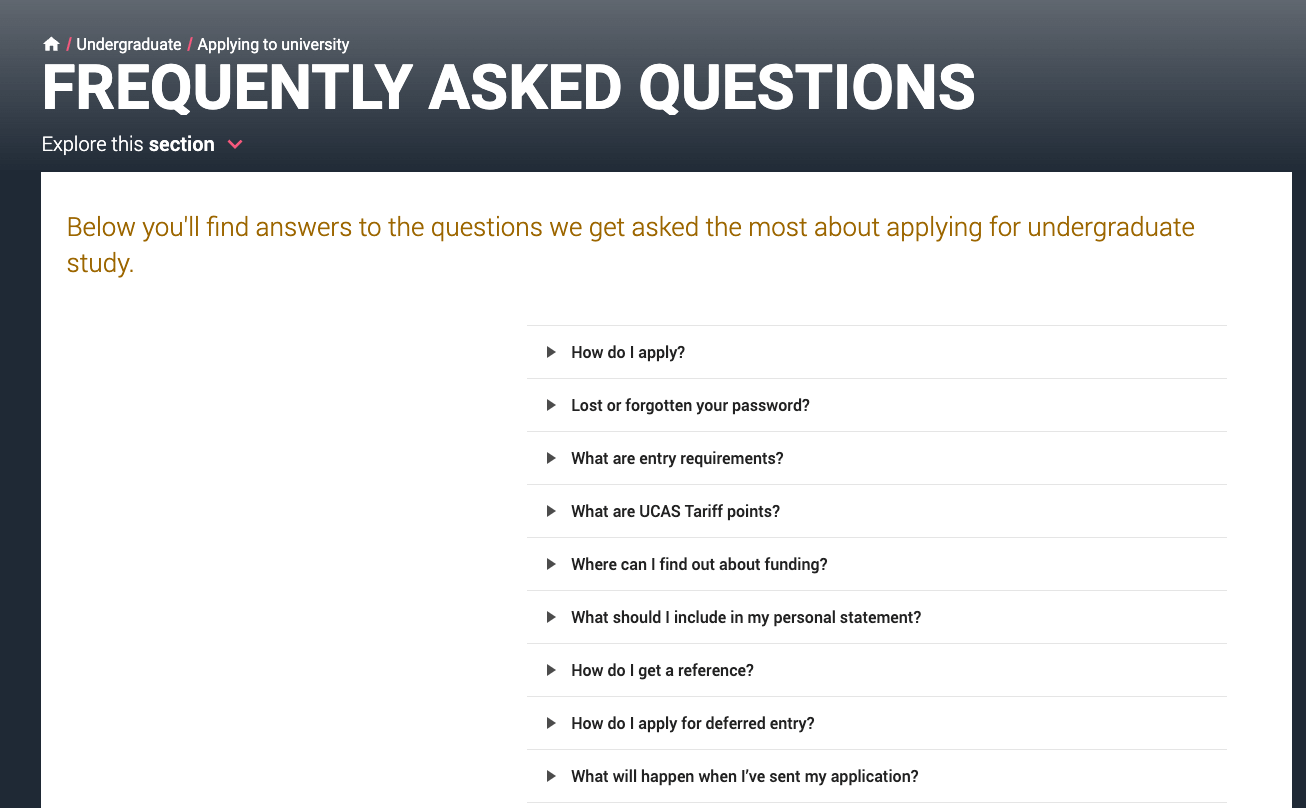
However, there’s a question as to whether serving content in this way has an impact on SEO, as the content is essentially hidden behind tabs.
Google can crawl content hidden behind tabs or accordions if those navigational elements are accessible in the HTML.
Google’s spam policies list accordion and tabbed content that toggles between hiding and showing information as a legitimate design element, not hidden text. It’s still important to ensure primary answers are visible and easily accessible. Use tabs or accordions for secondary information such as FAQs or user reviews.
What to ship instead: Google doesn’t click tabs the same way users do, so content hidden behind tabs or accordions that only loads on interaction might not get seen. Instead, render every tab panel in the HTML on page load and toggle its visibility with CSS or the hidden attribute, rather than fetching panel content with JavaScript only when someone clicks.
Quick test: Copy a sentence from inside a closed tab, then run the page through the URL Inspection tool in Google Search Console. Search the rendered HTML for it and, if it’s not there, it means Google can’t index it from that page.
Confusing or under-optimised website navigation
Your navigation menus shape how people move through your website. They also help crawlers determine the most important pages.
It’s a common misconception that Google uses your URL structure to understand your site hierarchy from the most important to the least important page. Search engines actually pay attention to how your pages link to one another across the website to understand site hierarchy and structure. Your navigation menus play a key role in establishing this.
Clear URL paths still help users. However, internal linking (especially your primary navigation) is the stronger hierarchy signal for crawlers. Understand how site hierarchy and URL structure work together.
Your main menu is the primary way crawlers find and access your content, so consider it when designing your website navigation menu. This is especially important for e-commerce navigation, where catalogues often have more extensive and complex main menu structures.
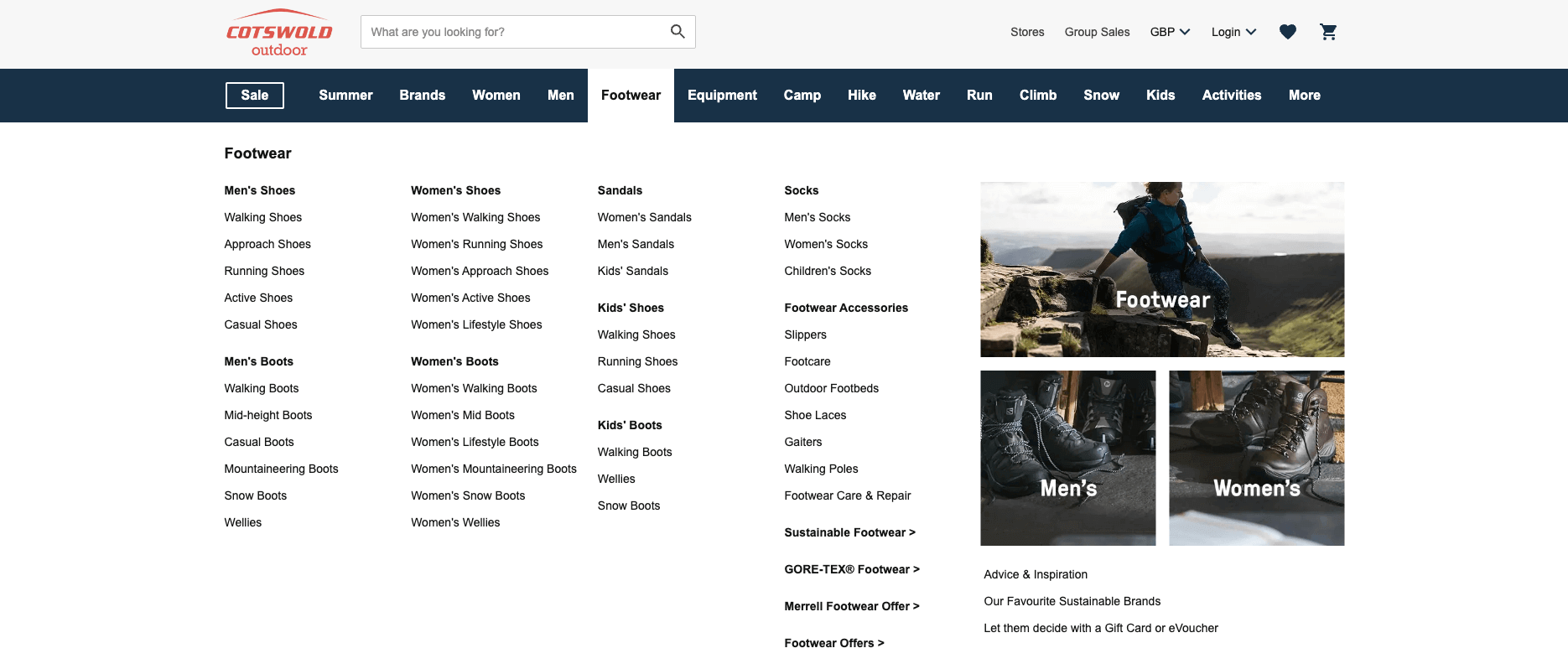
Below is an example of a good website menu hierarchy and structure on Cotswold Outdoor. Each item is categorised and subcategorised, and the links have descriptive anchors to help users and search engines understand where each link will take them:
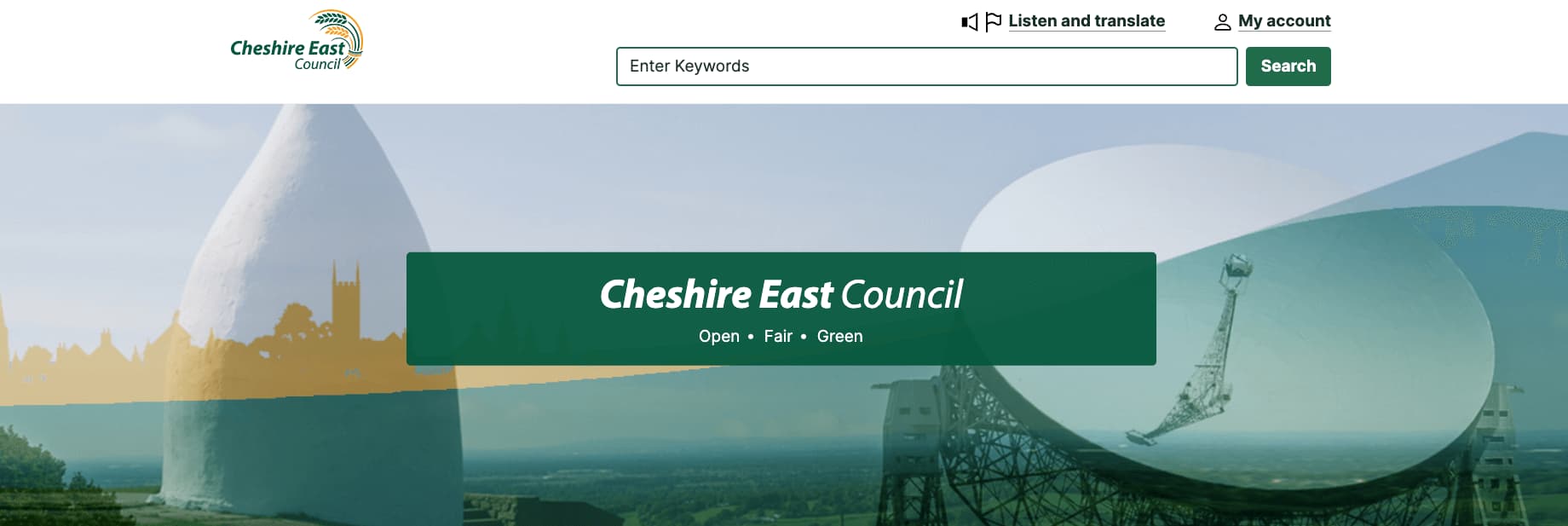
By contrast, the Cheshire East Council website could improve its site structure by adding a dropdown menu. This would help users and search engines find pages more easily, as opposed to the use of a search bar, which is much less helpful for users and search engines:
What to ship instead: Build menus from plain HTML links with descriptive anchor text, as Google’s link best practices state it can only crawl a link if it’s an <a> element with an href attribute. Menu items built from buttons or JavaScript click handlers might never be followed.
Keep your main category pages in the primary navigation. You can include a search bar but don’t rely on it or a JavaScript-only menu as the main route to your content. On larger catalogues, treat navigation design as an SEO deliverable alongside template work.
Check your mobile menu too. Under mobile-first indexing, Google primarily uses the mobile version of a page for indexing and ranking. If the mobile menu drops category links that the desktop menu shows, crawlers see a thinner site.
Google’s crawl budget guidance makes the same point for sites with separate mobile HTML: provide the same set of links on mobile as on desktop, or include them in a sitemap.
Infinite scroll
Infinite scrolling loads more page content as users reach the bottom of the page. Sites usually build infinite scroll with JavaScript, which fetches and injects new items as the reader nears the end of the list. It’s commonly applied on news websites or content hub pages.
Googlebot doesn’t behave like a user scrolling endlessly. If later items are only fetched on scroll and never exposed through crawlable paginated URLs or equivalent links in the rendered HTML, those items might not be discovered or indexed.
Depending on how your infinite scroll is implemented and how it’s visible in the rendered HTML, this can cause indexing problems. It’s possible that search engines will miss all the content that is hidden behind the scroll.
If infinite scrolling is key to your design, it’s important to understand how to implement this in a way that is search engine-friendly. The best way to do this is to create a paginated version of each section, meaning that each component will have its own page that can be accessed with a unique URL. The general practice for pagination is to include a parameterised URL indicating the page number such as below:
- https://www.example.com/news?page=2
- https://www.example.com/news?page=3
Google’s guidance on lazy-loaded content sets out what paginated fallback needs:
- Give each chunk its own persistent, unique URL
- Ensure each URL shows the same content every time it loads
- Link sequentially between the URLs, so search engines can discover the full set.
By updating the URL with the History API as people scroll, you align the address bar with what they’re reading, making every section shareable.
John Mueller created an infinite scroll with pagination demo to illustrate the correct way to serve this design element. When working this into your web design, be sure to read Google’s developer guidelines on correct implementation. Then you can use the URL Inspection tool in Google Search Console to confirm each paginated URL loads its own content in the rendered HTML.
A pattern worth shipping: Make the “Load more” control a real link to the next page (for example, <a href=”/news?page=2″>). Then use JavaScript to fetch that page’s items in place when someone clicks or scrolls. Users enjoy a smooth experience and crawlers have a plain link to follow.
Adding text to images instead of HTML
A common mistake web designers or businesses make is adding written content to images. By this, we mean when the written text has been implemented on the image file itself through tools like Canva and Photoshop.
One of the biggest issues with adding text to images in your designs is that it is neither accessible nor responsive. This means users who use screen readers or plain-text browsers can’t interpret the writing in the image. Similarly, on smaller devices, you can’t make the font size responsive, and it can become illegible.
Success criterion 1.4.5 of the Web Content Accessibility Guidelines (WCAG) 2.2 asks you to use real text rather than images of text wherever text can achieve the same visual presentation. Exceptions are for logos and other essential cases.
If your business sells goods to consumers in the EU, the European Accessibility Act has applied to e-commerce services since 28 June 2025. Offers and buttons that exist only as pixels are now a compliance and SEO risk.
Text baked into an image file is a weak vehicle for ranking. Search engines can’t reliably read it, and it can’t carry a link, a heading, or anchor text like HTML. Google’s image SEO best practices advise against embedding important text in images, especially page headings and menu items. Instead, it recommends keeping that text in HTML.
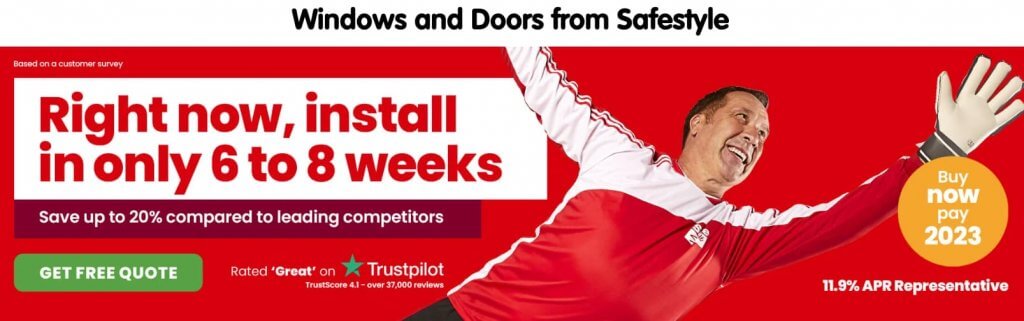
In the example below, you can see how Safe Style uses images with text edited into them to display their offers and finance options. You can see that the “GET FREE QUOTE” button is also part of the image, which will make it difficult for search engines to understand where the image links through to:
Instead, web designers should opt for using HTML and CSS to implement text and buttons over images, such as how Canyon have implemented their content and CTAs in the example below:
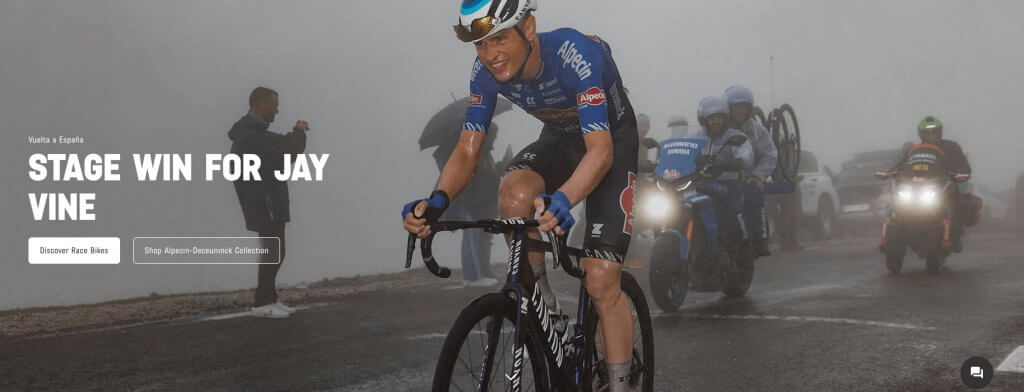
There are some exceptions to this rule. For example, if you are including a screenshot to illustrate something, there are instances where text will naturally be included in these screenshots (such as in this article). In this instance, it’s best to add descriptive alt text so that both search engines and users with accessibility needs can understand what the contents of the image are.
What to ship instead: Set headlines, offers, finance terms, and buttons as live HTML text layered over the image with CSS. Use a real link or button for the CTA. Live text resizes on smaller screens, works with translation tools, and gives search engines something to read.
Intrusive pop-ups and interstitials
Most people would agree that landing on a website to find an answer to a question only to be greeted with a huge pop-up is frustrating, and Google certainly thinks so too. After Google’s intrusive interstitials update in January 2017, pages where content isn’t easily accessible from mobile search results may rank lower.
Intrusive interstitials are essentially large pop-ups that obscure the entire content of a page. Often, they are advertisements and can be difficult to dismiss, which leads to a bad experience for users across all devices. Below, you can see an illustration of what intrusive interstitials tend to look like:
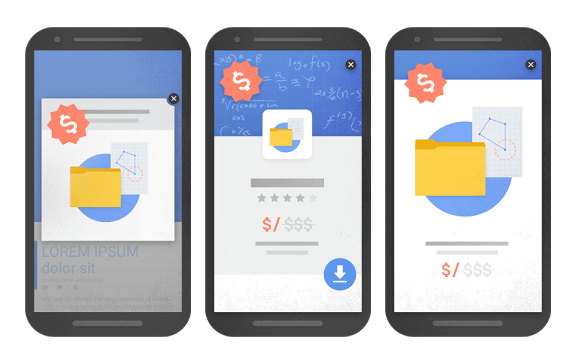
Google’s current interstitials and dialogs documentation states:
Intrusive dialogs and interstitials make it hard for Google and other search engines to understand your content, which may lead to poor search performance. Equally, if users find your site hard to use, they are unlikely to want to visit those websites again, including through search engines.
Despite this, if including a pop-up in your design is absolutely necessary, there are ways to do so without being intrusive. Opting to use smaller, dismissible banners that only take up a small portion of the screen and don’t interfere with the user’s interaction with the rest of the page content is an appropriate alternative.
You can also opt to show an easily dismissible interstitial at a later point that isn’t at the moment the page loads. For example, when a user navigates to another page or after they’ve had a chance to digest the page content first.
It doesn’t apply to all overlays. Google’s original announcement said interstitials shown to meet a legal obligation, such as cookie consent or age verification, wouldn’t be affected by the signal when used responsibly. A full-screen cookie wall isn’t good design, so keep consent banners compact.
Pop-ups and banners can also hurt Core Web Vitals. A cookie or promo bar injected above the content after load pushes everything down and counts towards Cumulative Layout Shift (CLS). web.dev’s guidance on optimising CLS covers reserving space for late-loading elements. A fixed-position overlay avoids the shift altogether.
What to ship instead: Trigger sign-up prompts on engagement, such as scroll depth or a second page view, not on page load. Keep the dialog to a small part of the screen with a close button that works on mobile and with a keyboard. Also ensure your main content is in the HTML underneath, rather than redirecting people to a separate page.
Understand more about how intrusive pop-ups and interstitials can lock both users and crawlers out of your content.
Pre-launch checklist for crawlable web design
Before you put a new design or template live, make these checks with your designers and developers to ensure everything important is crawlable:
- Tabs and accordions: Every panel’s content is in the HTML on page load, and primary answers are visible by default.
- Navigation: Key category pages link from the main menu with crawlable HTML links and descriptive anchor text, and the mobile menu carries the same links as desktop.
- Infinite scroll: Every chunk of content has its own persistent URL that’s linked sequentially and reachable without scrolling.
- Images: Headlines, offers, and CTAs are live HTML text (not within an image), and any screenshot containing words has descriptive alt text.
- Pop-ups: Nothing covers the main content on page load, and you can easily dismiss every dialog on mobile, and no banner pushes content down after load.
After ticking off everything on this checklist, run your key templates through the URL Inspection tool in Google Search Console. Then compare the rendered HTML with what people see on screen. Anything missing from the rendered HTML is content Google can’t index from that page, so review the importance of that content and make changes to ensure it’s crawlable where necessary.
Build SEO into your web design process
In most cases, you can achieve the design elements you want on your website, as long as you implement them correctly and keep your users, search engines, and AI tools in mind. Google and AI want to show people pages they can use, and users want the same from your design.
Working SEO into every part of your web design process is the best way to prevent traffic drops after design changes. If you’re planning a redesign, bring SEO into design reviews before templates are signed off, so crawlability is built in from the start.


